




The ShareX screenshot tool has become one of the most trusted open?source utilities for Windows users who need more than just a basic snipping function. Whether you’re a journalist capturing breaking news, a developer documenting workflows, or a student preparing presentations, ShareX offers a powerful blend of flexibility and automation. Unlike traditional screenshot apps, it doesn’t stop at capture — it empowers you to annotate, share, and even trigger custom scripts that streamline repetitive tasks.
In this article, we’ll explore how ShareX stands out among screenshot tools, highlight its automation features, and explain why it’s a reliable choice for anyone looking to optimize their digital workflow. From simple screen grabs to advanced post?capture scripting, ShareX is designed to save time and boost productivity.
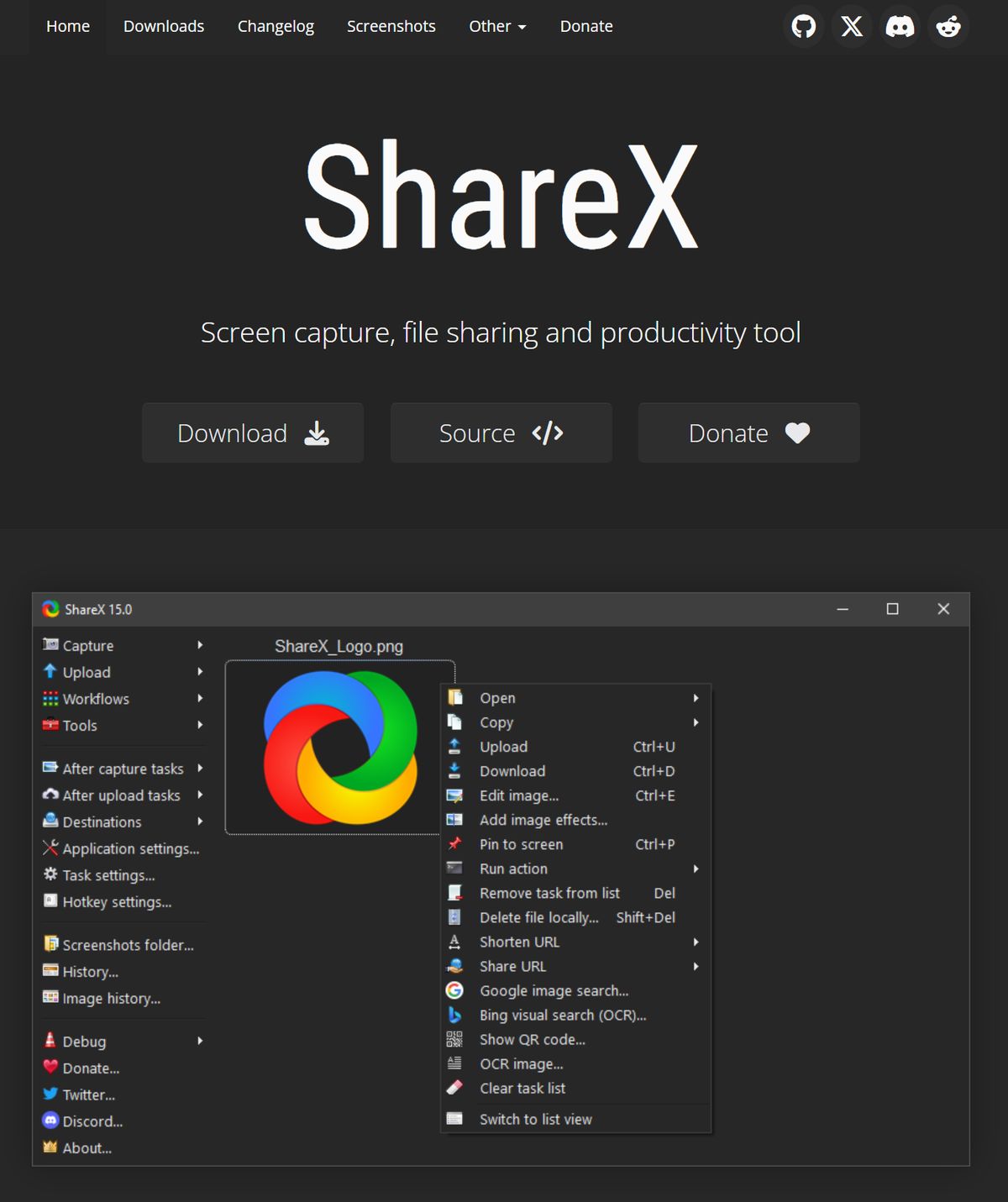
If you’re curious about comparisons with other tools, and tips for integrating ShareX into your publishing pipeline, you’re in the right place. And for those who enjoy visual learning, don’t forget to check out our YouTube channels: DroneMitra (“You Sky is Digital with a Drone as a Friend”) and Newspatron (“Let Curiosity Be Your Guide”).
Introduction to ShareX Screenshot Tool
The ShareX screenshot tool is more than just another snipping utility for Windows. It’s an open?source project that has steadily built a reputation among professionals, students, and digital creators for its versatility and reliability. Unlike the default Windows Snipping Tool, ShareX offers a wide range of capture modes — from full?screen grabs to scrolling window captures — making it suitable for everything from quick notes to detailed documentation.
One of the reasons ShareX stands out is its strong community support. Being open?source, it evolves quickly, with contributors adding new features and refining existing ones. This means users benefit from regular updates and a tool that adapts to modern workflows.

Key Features of ShareX Screenshot Tool
- Multiple Capture Modes: Full screen, active window, region, scrolling capture.
- Annotation Tools: Text labels, arrows, highlights, blur for sensitive info.
- Automation Workflows: Post?capture actions, Python script integration, cloud uploads.
- File Sharing: Direct sharing to Imgur, Dropbox, Google Drive, and more.
Automation with ShareX Screenshot Tool
ShareX allows users to define after?capture tasks that run automatically. By configuring the Actions tab, you can pass the screenshot file path to your script using %input%. Example:
python apply_frame.py "%input%"This makes it possible to instantly apply overlays, add branding, or perform other automated edits without manual intervention.
ShareX vs Other Screenshot Tools
- Greenshot: Lightweight, plugin?based, but less automation.
- Windows Snipping Tool: Simple, built?in, but lacks advanced features.
- Snagit (Commercial): Paid, polished, but ShareX offers similar power free.
? If you need automation and scripting, ShareX is the clear winner.
Recommended Product
Top Electronics Bestsellers on Amazon India
🛒 View on Amazon →As an Amazon Associate, we earn from qualifying purchases. Price and availability may vary.
Getting Started with ShareX Screenshot Tool
- Setup Version: Stable, recommended for most users.
- Portable Version: No installation, great for mobility.
- Dev Build: Latest features, less stable, ideal for developers.
- Microsoft Store / Steam: Easy installation, auto updates.
Conclusion & Next Steps
The ShareX screenshot tool proves that open?source software can rival commercial alternatives. Its automation, annotation, and sharing features make it a reliable choice for professionals and students alike.
Next Steps:
- Download the version that suits your workflow.
- Configure the Actions tab to run your Python script with %input%.
- Explore advanced features like scrolling capture and cloud sharing.
? For more insights, subscribe to DroneMitra and Newspatron on YouTube.
Call?to?Action & Social Integration
Connect with Kumar, Editor at Newspatron, across Instagram, Twitter, YouTube, Reddit, Facebook, Tumblr, WhatsApp, Telegram, RSS, LinkedIn.
