


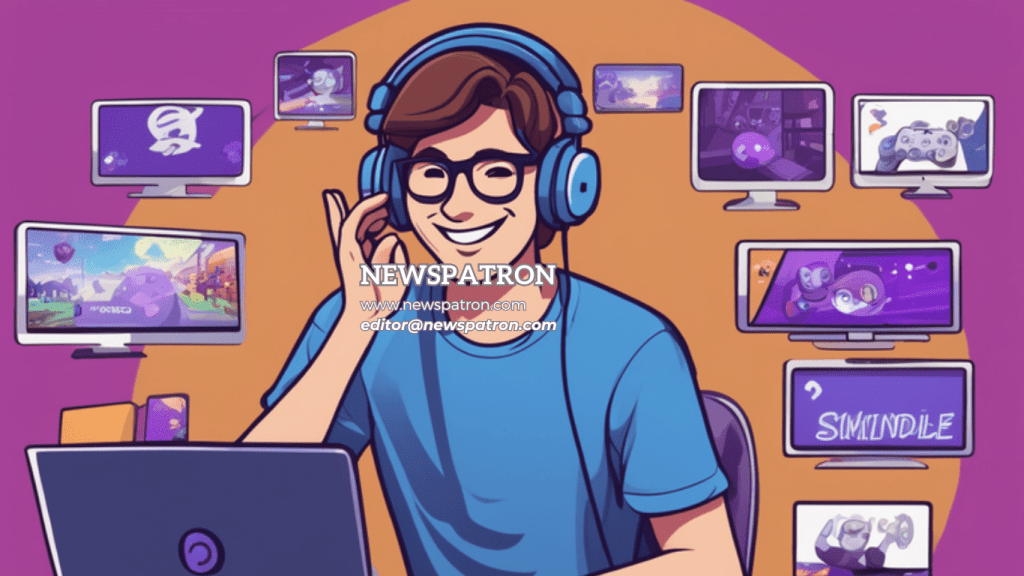

Discord is more than just a chat app for gamers. It is a powerful communication platform that allows you to text, voice chat, video chat, and share files with anyone you want. Whether you are a gamer, a business owner, a teacher, or a community builder, Discord can help you connect and collaborate with your audience, team, or friends.
In this blog post, we will show you how to get started with Discord and how to use its features to enhance your communication experience. We will also provide tips and tricks for using Discord effectively and efficiently. You will learn how to :Create and join Discord servers
Use Discord voice chat and screen sharing
Add bots to your Discord server
Use server roles and channels to organize your server
Use Discord for gaming, business, education, and communities
By the end of this blog post,
You will have a comprehensive understanding of Discord and how to use it for your purposes.
You will also discover some of the best practices and benefits of using Discord over other communication platforms.
So, are you ready to dive into the world of Discord? Let’s get started!
editor@newspatron.com
Lets get started with the Discord guide!

How to Create a Discord Server
A Discord server is a virtual space where you can invite other users to join and communicate with them. You can create a Discord server for any purpose, such as gaming, business, education, or community.
To create a Discord server, follow these steps:
- Open the Discord app on your computer or mobile device.
- Click on the plus (+) icon on the left sidebar.
- Select “Create a server” from the menu.
- Enter a name for your server and choose an icon for it. You can also select a server template that suits your purpose, such as gaming, education, or community.
- Click on “Create” to create your server.
Congratulations! You have created your own Discord server. Now you can invite other users to join your server and start communicating with them.
To invite other users to join your server, follow these steps:
- Click on your server name on the top left corner of the app.
- Click on “Invite people” from the menu.
- Copy the invite link and share it with anyone you want to invite. You can also use the QR code or email options to invite people.
- Alternatively, you can create an invite code that expires after a certain time or number of uses. To do this, click on “Edit invite link” and customize the settings.
- Once someone clicks on your invite link or code, they will be able to join your server.
You can also join other servers that interest you by clicking on the plus (+) icon on the left sidebar and selecting “Join a server” from the menu. You will need an invite link or code to join a server.
Recommended Product
Magnesium Body Spray – Muscle Recovery & Lavender Scent
🛒 View on Amazon →As an Amazon Associate, we earn from qualifying purchases. Price and availability may vary.
You can find servers that match your interests by using the [Discord Server Discovery] feature, which allows you to browse and search for servers by category, such as gaming, music, education, etc.
You can also use the Discord Server List website, which is a third-party directory of servers that you can filter by category, language, tags, etc.
You can join as many servers as you want, but you can only be active in one server at a time. To switch between servers, simply click on the server icon on the left sidebar.
That’s how you create and join Discord servers.

Discord Guide – How to Use Discord Voice Chat and Screen Sharing
Discord voice chat and screen sharing are two of the most popular features of Discord. They allow you to communicate with other users in real-time using your voice and your screen.
To use Discord voice chat, follow these steps:
- Join a voice channel on your server. You can do this by clicking on the voice channel name on the left sidebar.
- You will see a green circle around your avatar when you are connected to the voice channel. You will also see the avatars of other users who are in the same voice channel.
- To talk, simply speak into your microphone. You can also mute or unmute yourself by clicking on the microphone icon at the bottom left corner of the app.
- To adjust your volume, click on the speaker icon at the bottom left corner of the app and drag the slider.
- To leave the voice channel, click on the phone icon at the bottom left corner of the app.
To use Discord screen sharing, follow these steps:
- Join a voice channel on your server.
- Click on the screen icon at the bottom left corner of the app.
- Select what you want to share: your entire screen, a specific application window, or a browser tab.
- Click on “Go Live” to start sharing your screen.
- You will see a red circle around your avatar when you are sharing your screen. You will also see a live indicator on the voice channel name.
- To stop sharing your screen, click on the screen icon again and click on “Stop Streaming”.
You can also watch other users’ screens if they are sharing their screens. To do this, follow these steps:
- Join the same voice channel as the user who is sharing their screen.
- Click on their avatar and select “Watch Stream”.
- You will see their screen in a pop-up window. You can also resize, move, or close the window as you wish.
- To stop watching their screen, click on their avatar again and select “Stop Watching”.
That’s how you use Discord voice chat and screen sharing features.
Read an article about A Comprehensive Guide for Aspiring Space Travelers
Unveiling the Power of Helium 3 : The Future of Energy

Discord Guide on How to Add Bots to Your Discord Server
Bots are programs that can perform various tasks and functions on your Discord server. They can enhance your server’s functionality, entertainment, and moderation. For example, some bots can play music, games, trivia, memes, and more. Some bots can also help you manage your server, such as banning, kicking, muting, or warning users who break the rules.
To add bots to your Discord server, follow these steps:
- Find a bot that you want to add to your server. You can use the Discord Bot List website, which is a third-party directory of bots that you can filter by category, rating, tags, etc.
- Click on the bot’s name and select “Invite” from the menu.
- You will be redirected to a page where you can authorize the bot to join your server. You will need to have the “Manage Server” permission on your server to do this.
- Select the server that you want to add the bot to and click on “Authorize”.
- You will see a confirmation message that the bot has joined your server.
To use the bot on your server, follow these steps:
- Check the bot’s commands and features. You can do this by typing the bot’s prefix (usually a symbol or a word) followed by “help” in any text channel on your server. For example, if the bot’s prefix is “!”, you can type “!help” to see what the bot can do.
- Use the bot’s commands and features as instructed by the bot’s help message. For example, if the bot can play music, you can type “!play [song name]” to play a song on a voice channel.
- Enjoy the bot’s services and have fun with your server members.
You can also customize the bot’s settings and permissions on your server. To do this, follow these steps:
- Go to your server settings by clicking on your server name on the top left corner of the app and selecting “Server Settings” from the menu.
- Click on “Roles” on the left sidebar and find the role that corresponds to the bot’s name.
- Click on the role and adjust the settings and permissions as you wish. You can change the role’s name, color, position, display, and permissions.
- Save your changes and exit the settings.
That’s how you add bots to your Discord server.
How to Use Server Roles and Channels to Organize Your Server
Server roles and channels are two features that can help you organize your server and make it more user-friendly and efficient. Server roles allow you to assign different permissions and privileges to different members of your server. Channels allow you to divide your server into different topics and categories.
To use server roles, follow these steps:
- Go to your server settings by clicking on your server name on the top left corner of the app and selecting “Server Settings” from the menu.
- Click on “Roles” on the left sidebar and create a new role by clicking on the plus (+) icon.
- Enter a name for your role and choose a color for it. You can also select a role position, which determines the hierarchy of the role in relation to other roles.
- Adjust the role permissions as you wish. You can enable or disable various permissions, such as sending messages, managing channels, banning members, etc.
- Save your changes and exit the settings.
- Assign the role to a member by right-clicking on their name and selecting “Roles” from the menu. You can also assign multiple roles to a member if you want.
To use channels, follow these steps:
- Go to your server settings by clicking on your server name on the top left corner of the app and selecting “Server Settings” from the menu.
- Click on “Channels” on the left sidebar and create a new channel by clicking on the plus (+) icon.
- Choose whether you want to create a text channel or a voice channel. A text channel is for typing messages, while a voice channel is for talking with other users.
- Enter a name for your channel and choose an icon for it. You can also select a channel category, which groups similar channels together.
- Adjust the channel settings as you wish. You can enable or disable various settings, such as making the channel private, allowing only certain roles to access the channel, enabling slow mode, etc.
- Save your changes and exit the settings.
You can also create channel categories by clicking on the plus (+) icon next to “Text Channels” or “Voice Channels” and selecting “Create Category” from the menu. You can then drag and drop channels into the category that you want.
That’s how you use server roles and channels to organize your server.

How to Use Discord for Gaming, Business, Education, and Communities
Discord is not only a communication platform, but also a social network that connects you with people who share your interests and passions. You can use Discord for various purposes, such as gaming, business, education, and communities.
To use Discord for gaming, follow these tips:
- Create or join a server for your favorite game or genre. You can use the Discord Server Discovery feature or the Discord Server List website to find servers that match your preferences.
- Use voice chat and screen sharing to communicate and collaborate with your teammates while you are gaming. You can also use bots to play music, games, trivia, memes, and more on your server.
- Join or create tournaments, events, or competitions on your server. You can use bots to organize and manage them.
- Share your gaming achievements, screenshots, videos, or streams on your server. You can also use bots to track your stats and rankings.
- Find new friends, partners, or opponents on your server. You can also join other servers that are related to your game or genre.
To use Discord for business, follow these tips:
- Create or join a server for your business or industry. You can use the Discord Server Discovery feature or the Discord Server List website to find servers that match your niche.
- Use voice chat and screen sharing to communicate and collaborate with your colleagues, clients, or customers. You can also use bots to schedule meetings, send reminders, create polls, etc.
- Share your business updates, news, products, or services on your server. You can also use bots to collect feedback, testimonials, or reviews.
- Build your brand identity and reputation on your server. You can also use bots to reward your loyal customers or supporters with roles, badges, or perks.
- Network with other professionals, experts, or influencers on your server. You can also join other servers that are related to your business or industry.
To use Discord for education, follow these tips:
- Create or join a server for your school, class, or subject. You can use the Discord Server Discovery feature or the Discord Server List website to find servers that match your academic goals.
- Use voice chat and screen sharing to communicate and collaborate with your teachers, classmates, or students. You can also use bots to create quizzes, assignments, flashcards, etc.
- Share your educational resources, notes, projects, or presentations on your server. You can also use bots to access online libraries, databases, or calculators.
- Learn new skills and knowledge on your server. You can also use bots to find courses, tutorials, podcasts, etc.
- Find mentors, tutors, or peers on your server. You can also join other servers that are related to your school, class, or subject.
To use Discord for communities, follow these tips:
- Create or join a server for your hobby, passion, or interest. You can use the Discord Server Discovery feature or the Discord Server List website to find servers that match your personality and lifestyle.
- Use voice chat and screen sharing to communicate and socialize with other members of your community. You can also use bots to have fun, chat,

How to Use Discord for Communities
Discord is a great platform for building and growing communities of people who share your hobby, passion, or interest. You can use Discord to communicate and socialize with other members of your community, as well as to create and join events, activities, or projects related to your community.
To use Discord for communities, follow these tips:
- Create or join a server for your community. You can use the Discord Server Discovery feature or the Discord Server List website to find servers that match your personality and lifestyle.
- Use voice chat and screen sharing to communicate and socialize with other members of your community. You can also use bots to have fun, chat, play games, watch videos, listen to music, and more on your server.
- Create or join events, activities, or projects on your server. You can use bots to organize and manage them. For example, you can create or join book clubs, movie nights, art contests, trivia games, etc.
- Share your community creations, achievements, stories, or opinions on your server. You can also use bots to showcase your work, collect feedback, or reward your supporters.
- Find new friends, partners, or collaborators on your server. You can also join other servers that are related to your community.

Discord Best Practices and Benefits
Discord is a versatile and powerful communication platform that can help you achieve your goals and have fun at the same time. However, to get the most out of Discord, you need to follow some best practices and be aware of its benefits.
Here are some best practices for using Discord:
- Be respectful and courteous to other users. Follow the rules and guidelines of each server that you join or create. Do not spam, troll, harass, or abuse other users or servers.
- Be careful about your personal information and privacy. Do not share your personal or sensitive information, such as your real name, address, phone number, email, password, etc., with anyone on Discord. Do not click on suspicious links or download unknown files from Discord. Use the Discord Privacy Settings to control who can contact you, add you as a friend, or see your online status.
- Be creative and original with your content. Do not plagiarize, copy, or steal other users’ content without their permission or credit. Do not use bots or other tools to generate or manipulate content that is not yours. Use your own words and knowledge to create and share content that is unique and valuable.
- Be supportive and helpful to other users. Provide constructive feedback, advice, or assistance to other users who need it. Appreciate and acknowledge other users’ work, achievements, or contributions. Join or create communities that are positive, friendly, and inclusive.
Here are some benefits of using Discord:
- Discord is free to use. You do not need to pay anything to use Discord’s features and services. You can also upgrade to [Discord Nitro] for a small fee to access some premium features, such as custom emojis, animated avatars, higher quality streaming, etc.
- Discord is easy to use. You do not need any technical skills or experience to use Discord. You can easily create an account, download the app, join a server, and start communicating with other users. You can also customize your settings and preferences according to your needs and preferences.
- Discord is flexible and adaptable. You can use Discord for any purpose that you want. You can use it for gaming, business, education, communities, or anything else that you can think of. You can also use it on any device that you want. You can use it on your computer, mobile phone, tablet, or web browser.
- Discord is fun and engaging. You can use Discord to have fun and enjoy yourself with other users. You can use it to play games, watch videos, listen to music, chat,

You can use Discord to have fun and enjoy yourself with other users. You can use it to play games, watch videos, listen to music, chat, and more on your server. You can also use bots to add more entertainment and variety to your server. For example, you can use bots to play trivia, memes, jokes, riddles, etc. You can also use bots to create and join events, activities, or projects that are related to your hobby, passion, or interest. You can also use Discord to express your creativity and originality by creating and sharing content that is unique and valuable. For example, you can use Discord to write poems, stories, code, essays, songs, celebrity parodies, and more using your own words and knowledge. You can also use my predefined tools to help you with your content creation. For example, you can use my graphic_art tool to create a graphical artwork based on a prompt that you provide. You can also use my search_web tool to find information and examples about any topic that you want.
Discord is a communication platform that can enrich your life and make it more fun and engaging. You can use it to connect and collaborate with people who share your interests and passions. You can also use it to learn new skills and knowledge that can help you achieve your goals. Discord is more than just a chat app for gamers. It is a social network that connects you with the world.

Discord for Gaming
Discord is popular among gamers because it offers a number of features that are useful for gaming, such as high-quality voice chat, screen sharing, and bots.
Here are some tips for using Discord for gaming:
- Create or join a server for your gaming community. You can use the Discord Server Discovery feature or the Discord Server List website to find servers that match your preferences.
- Use voice chat and screen sharing to communicate and collaborate with your teammates while you are gaming. You can also use bots to play music, games, trivia, memes, and more on your server.
- Join or create tournaments, events, or competitions on your server. You can use bots to organize and manage them.
- Share your gaming achievements, screenshots, videos, or streams on your server. You can also use bots to track your stats and rankings.
- Find new friends, partners, or opponents on your server. You can also join other servers that are related to your game or genre.
Discord for Business
Discord can also be used for business purposes. For example, you can use it to communicate and collaborate with your colleagues, clients, or customers.
Here are some tips for using Discord for business:
- Create or join a server for your business or industry. You can use the Discord Server Discovery feature or the Discord Server List website to find servers that match your niche.
- Use voice chat and screen sharing to communicate and collaborate with your colleagues, clients, or customers. You can also use bots to schedule meetings, send reminders, create polls, etc.
- Share your business updates, news, products, or services on your server. You can also use bots to collect feedback, testimonials, or reviews.
- Build your brand identity and reputation on your server. You can also use bots to reward your loyal customers or supporters with roles, badges, or perks.
- Network with other professionals, experts, or influencers on your server. You can also join other servers that are related to your business or industry.

