




Hold onto your hats, video editing aficionados! Blackmagic Design has dropped a bombshell with DaVinci Resolve 19 Beta 5, and it’s not just a minor tweak – it’s a full-on glow-up. We’re talking features that editors have been clamoring for (finally!), AI wizardry that’ll make your footage shine, and enough under-the-hood improvements to make your editing rig purr like a kitten.
Whether you’re a seasoned pro juggling Hollywood blockbusters or a weekend warrior crafting YouTube masterpiece, this update is a game-changer. So grab your favorite caffeinated beverage and get ready for a deep dive into the juicy details of Resolve 19 Beta 5. Trust us, you won’t want to miss this! ?
[Read our previous blog DaVinci Resolve 19 Review: AI Tools & Film Looks]
[Blackmagic Camera App Transforms Your Phone into a Film Studio]
The Big Reveal: Media File Resync
Let’s kick things off with a feature that’s been on every DaVinci Resolve user’s wish list: media file resync. No more tedious manual imports when you add new footage to your project folder.
In Beta 5, a simple right-click on your media pool bin reveals the magic – “Resync Media Files.” This little command is a lifesaver, automatically scanning your project folder for fresh footage and adding it to your bin. It’s like having a personal assistant who keeps your media library up-to-date without you lifting a finger.
Use Case: The Documentary Filmmaker’s Dream
Imagine you’re a documentary filmmaker, constantly receiving new footage from the field. Instead of interrupting your creative flow to import each clip individually, you can now simply hit “Resync” and watch as all the new material seamlessly appears in your media pool, ready for you to weave into your narrative.
But Wait, There’s More!
Recommended Product
Casio Enticer Men's Analog Green Dial Watch MTP-VD01D
🛒 View on Amazon →As an Amazon Associate, we earn from qualifying purchases. Price and availability may vary.
This feature isn’t just for video files – it also works with subfolders! If your project is organized into a hierarchy of folders and subfolders, Resolve 19 Beta 5 has got you covered. A single resync on the main folder will refresh the entire structure, pulling in new clips from every nook and cranny.
Plus, there’s a bonus for power bin users: the resync feature works seamlessly there too. Even better, there’s now a handy keyboard shortcut for resyncing, making the whole process even faster. Talk about a productivity boost!
Note: While this feature is a game-changer, it currently only works for video files. Blackmagic Design has hinted at expanding its capabilities to include other file types in future updates, so stay tuned!
Cinematic Dreams: Upgraded Film Look Creator
In a bid to further empower filmmakers and editors, Blackmagic Design has enhanced the Film Look Creator in DaVinci Resolve 19 Beta 5. This powerful tool, designed to effortlessly infuse your footage with cinematic aesthetics, now comes with a broader palette of “core looks.”
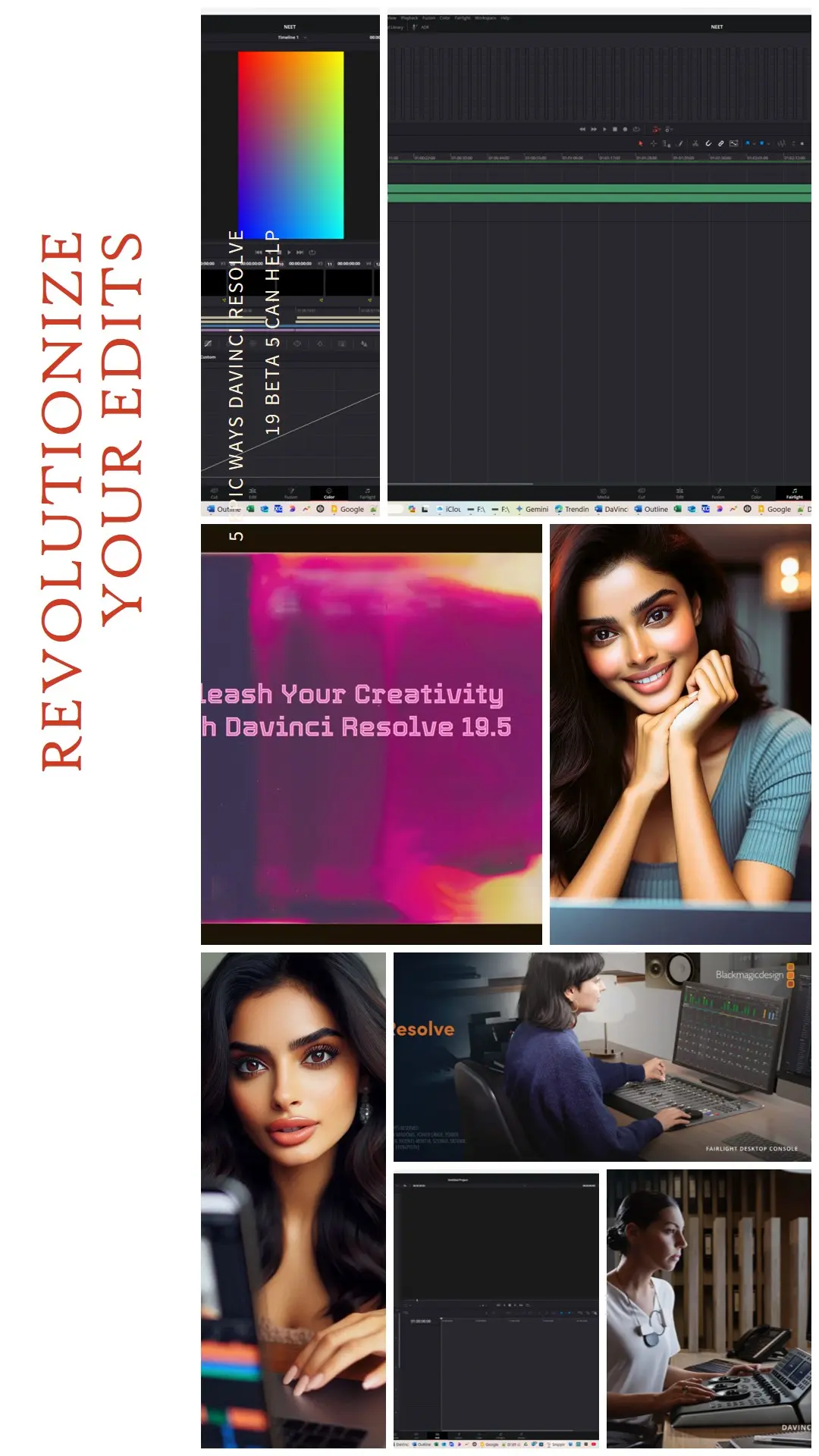
Use Case: The Indie Filmmaker’s Secret Weapon
Imagine you’re an independent filmmaker with a limited budget. With the Film Look Creator, you can quickly transform your footage to evoke the atmosphere of classic films or experiment with more modern, stylized looks. The new core look options give you a wider range of creative choices, helping you achieve your artistic vision without the need for expensive equipment or extensive color grading expertise.
The Film Look Creator doesn’t stop at presets. Once you’ve selected a core look, you can further fine-tune the exposure, color balance, split toning, vignettes, halation, and grain to create a truly unique and personalized look.
Taking on the Competition
With these enhancements, the Film Look Creator is poised to challenge third-party tools like Dehancer and FilmConvert Nitrate, which are known for their extensive libraries of film stock emulations. While Resolve’s built-in tool doesn’t offer specific film stock emulations yet, its expanded core look options and customizable parameters make it a powerful contender in the quest for cinematic aesthetics.
The Film Look Creator is a testament to Blackmagic Design’s commitment to making professional-grade tools accessible to everyone. Whether you’re a seasoned colorist or a novice editor, this tool can help you achieve stunning cinematic results with minimal effort.
The Film Look Creator is a fantastic addition that empowers editors to craft visually stunning films with ease. But wait, there’s more! Let’s explore the Studio-exclusive enhancements that are set to revolutionize your HDR and upscaling workflows.
Studio Exclusives: AI-Powered Magic for HDR and Upscaling
DaVinci Resolve 19 Beta 5 brings two exciting features exclusively to Studio users with Nvidia RTX GPUs on Windows systems: Automatic SDR to HDR Tone Mapping and enhanced Super Scale options. These additions harness the power of AI and Nvidia RTX video technology to streamline your HDR workflows and upscale your footage to new heights.
AI-Powered SDR to HDR Tone Mapping
If you’ve ever wanted to transform your Standard Dynamic Range (SDR) content into the vibrant world of High Dynamic Range (HDR), the new automatic SDR to HDR tone mapping feature is your ticket. Powered by AI, this feature automatically analyzes your footage and applies the correct tone mapping to convert it to HDR while preserving natural colors and textures.
Use Case: Breathe New Life into Old Footage
Imagine you have a treasure trove of old family videos or archival footage that you’d like to remaster for modern displays.
Join the Discussion
Your opinion matters! We invite you to express your views. Join our forum, engage in thoughtful discussions, share information, and submit your content. Let’s delve into diverse perspectives together.
[bbp-single-topic id=6694]
Supercharged Super Scaling
The existing super scaling feature gets a major upgrade in Beta 5. With the new 2x and 4x Super Scale options, you can now upscale your footage using Nvidia RTX video technology, resulting in sharper images and reduced compression artifacts. This is particularly beneficial for low-resolution footage or projects requiring upscaling for larger displays.
Use Case: From SD to 4K Glory
Imagine you have a classic film shot in standard definition that you want to remaster for a 4K release. With the new Super Scale options, you can upscale the footage while minimizing quality loss, allowing audiences to enjoy the film in all its glory on modern displays.
Under the Hood: Nvidia RTX Video
Both the SDR to HDR tone mapping and Super Scale features leverage Nvidia RTX video technology to accelerate processing and deliver real-time results. This means you can apply these effects on the fly, previewing the results in real-time and reducing render times significantly. It’s a testament to Blackmagic Design’s commitment to harnessing cutting-edge technology to empower creators.
Cut to the Chase: Cut Page Improvements
The Cut page, designed for swift and intuitive editing, has received a significant facelift in DaVinci Resolve 19 Beta 5. A slew of enhancements makes this already efficient workspace even more user-friendly and powerful.
Adaptive Multiview Layouts:
No more squinting at tiny windows! Multiview layouts now intelligently adjust to the width of your viewer, maximizing screen real estate and making it easier to compare multiple camera angles simultaneously. This is particularly beneficial for fast-paced projects like sports or live event editing.
New Transition Controls and Actions:
- Timeline Context Menu: Set transition type, duration, and alignment directly from the timeline context menu, streamlining your editing process.
- Edit Options Menu: New transition actions in the edit options menu offer additional control over your transitions.
- Optical Flow: Activate optical flow from the replay menu for smoother slow-motion and speed changes, especially useful when working with high frame rate footage.
Audio Channel Selection & Monitoring:
- Timeline Options: Choose specific audio channels directly within the cut page timeline options. This is great for isolating commentary, ambient sound, or other audio sources during live event editing or sports replays.
- Replay Workflows: Monitor audio channels during replay workflows to ensure optimal audio quality.
ATEM Mini Support (Mac):
- Mac users can now seamlessly integrate their ATEM Mini switcher into DaVinci Resolve for live capture and replay, providing a powerful solution for live production workflows.
Timeline Transcription as Nested Clips:
- Transcribe interviews, dialogues, or voiceovers effortlessly, and then organize the transcribed content into nested clips for a tidy and manageable timeline. This feature is a godsend for documentary filmmakers, journalists, and anyone working with interview footage.
Let’s take a deeper look at some of these new features and explore how they can elevate your editing workflow.
Use Case: The Live Event Editor’s Swiss Army Knife
Imagine you’re editing a live concert or sporting event. The new adaptive multiview layouts allow you to monitor multiple camera angles seamlessly, while the enhanced transition controls and audio channel selection options give you precise control over the final output. The ability to activate optical flow and transcribe the timeline on the fly further streamlines your workflow, ensuring that you capture all the key moments and deliver a polished product under tight deadlines.
Deep Dive: Additional Enhancements in DaVinci Resolve 19 Beta 5
Beyond the headliners, DaVinci Resolve 19 Beta 5 is packed with a treasure trove of additional enhancements that refine and expand your editing capabilities. Let’s take a closer look at some of these hidden gems.
AI Performance Boost:
DaVinci Resolve’s AI-powered features, such as facial recognition and object tracking, are now up to 3x faster on supported Intel Windows systems. This means quicker results and smoother workflows when using AI-driven tools.
Use Case:
Imagine you’re working on a project with numerous facial recognition tasks, such as blurring faces or tracking specific people throughout the footage. The improved AI performance will drastically reduce processing time, allowing you to focus on your creative vision.
Subtitle File Naming:
Exported subtitle files now intelligently include the timeline and subtitle track names. This small but significant change enhances organization and simplifies file management, especially for projects with multiple timelines and subtitle tracks.
Improved UltraNR for Textures:
The updated UltraNR noise reduction tool now handles textured surfaces more effectively, reducing noise while preserving fine details and textures. This is particularly beneficial for archival footage or low-light scenes where noise reduction is crucial.
OpenFX Renderer Integration:
The OpenFX Renderer plugin can now apply timeline grades from stills, allowing for consistent color grading across both video and still images within your project. This is a handy feature for creating promotional materials or social media posts that match the visual style of your video project.
Enhanced Cloud Project Management:
For teams collaborating on cloud projects, the project manager information tab now displays member organization groups. This improvement facilitates better organization and communication among team members.
Timecode and MIDI Timecode Chase in Fairlight:
Audio post-production workflows are streamlined with the addition of timecode and MIDI timecode chase support in the Fairlight page. This ensures accurate synchronization of audio cues with video and MIDI events.
Smart Bin Filter for Proxy Status:
Efficiently manage your proxy media in the media pool with the new smart bin filter, allowing you to quickly identify which clips need to be replaced with high-resolution versions.
Keyframe-Aware Speed Changes:
Fine-tune speed ramps and adjustments with keyframe-level precision in the inspector. This gives you greater control over dynamic motion effects and transitions.
Alphabetically Sorted Custom Deliver Presets:
Easily locate and apply your custom deliver presets, as they are now sorted alphabetically for quicker access and a more organized workflow.
Scripting API Enhancements:
Developers will appreciate the expanded scripting API, which now offers control over color nodes, cloud project settings, and Dolby Vision analysis. This opens up new possibilities for automating tasks and integrating DaVinci Resolve with other tools and workflows.
Installation Notes & Getting Started
Ready to get your hands on DaVinci Resolve 19 Beta 5? Head over to the Blackmagic Design support website and download the appropriate version for your operating system. Remember, it’s a beta release, so exercise caution and don’t use it for mission-critical projects.
Important Note for Nvidia Users:
To unleash the full potential of the AI-powered HDR tone mapping and Super Scale features on Windows, you’ll need a supported Nvidia graphics card and the Studio 550.58 driver (or newer). If you don’t meet these requirements, don’t worry – you’ll still be able to use Resolve 19 Beta 5, but those specific features won’t be available.
Explore and Experiment!
Once you’ve got the beta installed, dive in and start exploring. Play around with the new media file resync feature, experiment with different core looks in the Film Look Creator, and push the limits of Super Scale. Most importantly, have fun and let your creativity run wild!
Conclusion: Your Editing Future is Now
DaVinci Resolve 19 Beta 5 isn’t just an update; it’s a bold declaration that the future of video editing is here, and it’s brimming with innovation. From time-saving features like media file resync to AI-driven enhancements that elevate your footage, this beta release has something for everyone.
Whether you’re a seasoned professional or just starting your editing journey, Resolve 19 Beta 5 empowers you to bring your creative visions to life with greater efficiency, precision, and artistic flair.
So, what are you waiting for? Dive into the world of DaVinci Resolve 19 Beta 5 and discover the limitless possibilities that await you. Embrace the future of editing and unleash your creative potential today!
Where to Download DaVinci Resolve
Ready to jump into DaVinci Resolve? Here’s how to find the version you need:
DaVinci Resolve Free Version:
- Head to the official Blackmagic Design website: [link davinci resolve free version download]
- Look for the “Free Download” button and follow the instructions.
DaVinci Resolve Studio Version:
- If you need the full suite of features, including advanced HDR tools, noise reduction, and collaboration features, the Studio version is the way to go: [link davinci resolve studio version download]
Other Versions:
- Beta Versions: If you’re feeling adventurous and want to test the latest features, you can download the public beta version from the Blackmagic Design website (like the one we’ve been discussing).
- DaVinci Resolve Micro Panel, Mini Panel, and Speed Editor Software: These versions are designed for specific hardware panels and can be found on the Blackmagic Design website as well.
Stable Version:
- The latest stable version is the one recommended for most users. You can find it on the official Blackmagic Design website.
Previous Versions:
- While not officially available for download, older versions might be found through a web search if you have a specific need for them. However, using the latest stable version is generally recommended for compatibility and bug fixes.
No matter which version you choose, make sure to check the system requirements to ensure compatibility with your computer.
